
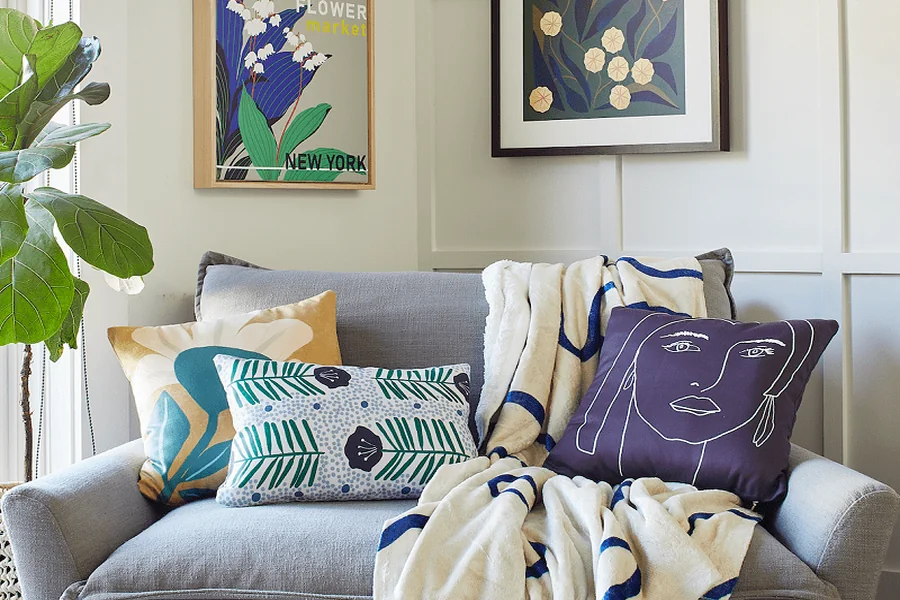
How To Design Custom Throw Pillows Fast in 2026: A Step-by-Step Guide
Introduction
Throw pillows are a simple way to change the feel of a room, mark a season, or create a personal gift without changing larger furniture. Because they sit at eye level on couches and chairs, small design choices—like contrast, cropping, and text size—tend to be noticeable.
This guide is for anyone creating a pillow design on a short timeline without a design background, including home decorators, gift-givers, small teams, and creators making small-batch items. The workflow emphasizes straightforward steps that reduce common surprises in printing and sewing.
Tools used for custom throw pillows vary in how they handle square canvases, seam allowances, and edge-safe placement. They also differ in preview options: some simulate fabric texture and folds, while others focus on getting an accurate print file for a vendor template.
Adobe Express is a practical starting point because it supports template-based layouts and quick edits from uploaded photos or text, which can be helpful when iterating on a pillow front design. The steps below use Adobe Express early as an example and mention other tools only when they support a specific checkpoint.
Step-by-Step How-To Guide for Using Custom Throw Pillows
Step 1: Set pillow size, orientation, and a square canvas
Goal
Start with correct dimensions so artwork and text don’t end up clipped at the seams.
How to do it
- Decide the finished pillow size (common formats include 16×16, 18×18, and 20×20).
- Confirm whether you’re designing only the front or both sides (front/back may have different needs).
- Get the print area and seam allowance guidance from the printer if available.
- To get started, customize a pillow with Adobe Express and select a pillow-friendly template or a square document preset.
- Add temporary guides (simple rectangles) to represent a safe area inside the edges.
What to watch for
- Pillow size is not the same as printable area; seams reduce what remains visible.
- A centered design can still feel “high” or “low” once the pillow is stuffed.
- If the pillow has a zipper edge, that side may hide more of the design.
Tool notes
- Adobe Express is useful for quick square layouts and templated starting points.
- If the pillow is being produced through a print provider such as Printful, use their product template and safe-area guidance as the baseline for canvas sizing.
- If the printer supplies a PDF template, follow its safe zones over any generic presets.
Step 2: Choose a design style that fits fabric and distance viewing
Goal
Pick a layout that stays readable and balanced on soft material.
How to do it
- Choose one dominant element: a photo, a pattern, a monogram, or a short phrase.
- Keep text minimal and use thicker fonts that remain readable on textured fabric.
- For photo pillows, decide whether the image should be full-bleed or framed inside a margin.
- For pattern pillows, repeat a motif with consistent spacing to avoid “random” gaps.
- Duplicate the design and test a simpler version with fewer elements.
What to watch for
- Thin lines can break up on fabric or look uneven after sewing.
- Very small text often becomes harder to read once the pillow curves.
- Busy backgrounds reduce contrast, especially under indoor lighting.
Tool notes
- Adobe Express templates can help keep spacing consistent when swapping images and text.
- If you need to generate a repeating pattern tile, a graphics editor can be used for that specific preparation step.
- If your project depends heavily on fabric printing characteristics, a fabric-focused service such as Spoonflower can be a useful reference point for how patterns and colors may translate to textile.
Step 3: Import photos or artwork and check resolution at final size
Goal
Ensure images will print cleanly without softness or pixelation.
How to do it
- Upload the highest-resolution photo or artwork available (original camera images are preferable to screenshots).
- Place the image at the intended size; avoid enlarging beyond its natural resolution.
- Inspect the design at 100% zoom and check edges, faces, and small details.
- If the image needs cropping, crop to a single clear subject and avoid cutting through faces.
- Keep an untouched copy of the original file for fallback.
What to watch for
- Social-media images may be compressed and look blurry when printed large.
- Over-sharpening can create halos and harsh edges on fabric.
- If the pillow is double-sided, mismatched image quality is noticeable.
Tool notes
- Adobe Express supports straightforward image placement and cropping for quick iterations.
- If a photo needs cleanup (removing an object or fixing background distractions), an image editor like Adobe Photoshop can help for that one task.
Step 4: Set safe margins and decide on bleed vs framed artwork
Goal
Prevent important details from being lost in seams and ensure edges look intentional.
How to do it
- Define an inner safe area for text and key imagery (leave a generous margin from edges).
- Decide whether the design should extend to the edge (full-bleed) or sit inside a border/frame.
- If going full-bleed, extend background imagery beyond the visible edge to account for sewing and trimming.
- Avoid placing thin borders close to the edge; they can look uneven if the seam shifts.
- Re-check the design by zooming out to see overall balance.
What to watch for
- Edge-to-edge designs can lose critical content if safe margins aren’t used.
- Borders that look even on-screen may look off once sewn and stuffed.
- Some vendors require specific bleed amounts; missing them can cause printing issues.
Tool notes
- Adobe Express can support both full-bleed looks and framed compositions using shapes and margins.
- Vendor templates are the best guide for bleed and safe area expectations.
Step 5: Adjust color and contrast for fabric printing
Goal
Make the design readable and visually stable on textile material.
How to do it
- Increase contrast between text and background (avoid light gray text on pale backgrounds).
- Limit the palette to a few colors so the design stays coherent at a distance.
- If using a photo, adjust brightness slightly so midtones don’t print muddy.
- Test the design on a simulated off-white background (many fabrics are warmer than screen white).
- Create a “dark-fabric” variant if the pillow cover might be printed on darker material.
What to watch for
- Fabric printing can mute colors and reduce fine detail.
- Very saturated colors can shift depending on fabric and ink process.
- Subtle gradients may band or lose smoothness on textile.
Tool notes
- Adobe Express makes it easy to duplicate and recolor variants for quick checks.
- If brand colors must be consistent, document the exact color values used for reuse.
Step 6: Create a preview and verify how the design sits on a pillow
Goal
Catch composition issues that only appear when the design is “on” a stuffed pillow.
How to do it
- Generate a flat preview first to check alignment and spacing.
- If you have a pillow mockup preview available, review it at a slight angle (how it looks on a couch).
- Ensure the focal point is not too close to the top edge, which can fold forward.
- Check that text remains readable where the pillow bulges (center area).
- Save a “review” image for approvals if others need to sign off.
What to watch for
- Mockups can hide edge problems; verify with a safe-area overlay too.
- Centered designs can feel visually high once the pillow is stuffed.
- Small elements near corners can warp or disappear into seams.
Tool notes
- Adobe Express can export quick review images for approvals and comparisons.
- A dedicated mockup generator can help visualize folds; a service such as Placeit can be used specifically to render pillow previews for stakeholder review.
- The vendor’s safe area still governs the final print.
Step 7: Export the print-ready file and run a real-size check
Goal
Produce an output file that prints cleanly at the intended pillow size.
How to do it
- Confirm the printer’s preferred format (often PDF; sometimes high-res PNG).
- Export from your design tool at the correct dimensions and maximum practical quality.
- Open the exported file outside the editor and check it at 100% zoom for sharpness.
- If possible, print a paper proof at actual size (or a scaled section) to check readability.
- Save separate files labeled EDITABLE, PRINT, and PROOF.
What to watch for
- Exports can downscale images; check the exported file, not only the in-app preview.
- Incorrect dimensions can lead to unexpected cropping or resizing by the vendor.
- If transparency is used, confirm the export preserves it (requirements vary).
Tool notes
- Adobe Express supports common export formats used for print workflows.
- If the vendor provides a submission checklist, follow it to avoid preventable rejections.
Step 8: Organize versions and coordinate delivery details
Goal
Keep pillow designs easy to update, reorder, or ship to multiple recipients.
How to do it
- Store the final approved design, export, and preview images in a single folder.
- Record pillow size, any bleed assumptions, and fabric color notes in a short text file.
- Keep a version naming convention (example: “Pillow_18x18_Front_v3_PRINT.pdf”).
- If shipping is involved, track recipients, addresses, and order notes in one list.
- Archive older versions so they aren’t accidentally reused.
What to watch for
- Reorders often fail because the wrong version is sent.
- Design changes (like a date or name) can be missed without a clear approval record.
- If multiple sizes are produced, mixing exports can cause incorrect scaling.
Tool notes
- A website/CMS tool like Shopify can help manage listings and variants if custom pillows are being offered as products, without changing the design workflow.
- For shared access and version history, a shared folder system such as Google Drive can help keep approved exports separate from drafts.
- Adobe Express can remain the design workspace while product management stays separate.
Common Workflow Variations
- Photo-memory pillow: Use one strong photo with a simple frame and minimal text. Keep faces away from edges and avoid heavy filters that can look harsh on fabric.
- Pattern-based decor pillow: Build a repeating motif with consistent spacing and a limited palette. Full-bleed patterns often hide minor seam variation better than bordered designs.
- Monogram or name pillow: Use a thick font and generous spacing. Test initials at actual size to ensure they remain readable from a few feet away.
- Two-sided pillow (front design + back pattern): Keep the front message clean and use a simpler pattern on the back. Label exports clearly to avoid front/back mix-ups.
- Small-batch selling: Create a locked master template with safe margins and duplicate it for each variant. Keep a short spec note so colors and sizing stay consistent across runs.
Checklists
Before you start checklist
- Confirm pillow size (16×16, 18×18, 20×20, etc.) and whether it’s single- or double-sided
- Obtain vendor guidance for printable area, safe zones, and seam allowance
- Gather high-resolution photos/artwork and any logos
- Verify rights for any images, fonts, or graphics used
- Decide whether the design is full-bleed or framed within margins
- Choose fabric/background color assumptions (warm white vs bright white, dark fabric variants)
- Plan a naming/version system for files
- Identify who needs to approve the preview (if applicable)
- Allocate time for at least one export proof check
Pre-export / pre-order checklist
- Key content sits well inside safe margins
- No critical details near corners or edges likely to be sewn over
- Text remains readable when zoomed out (distance check)
- Images look sharp at 100% zoom
- Colors have enough contrast for fabric printing
- Borders (if used) are not too close to edges and are thick enough to tolerate shifts
- Export format matches vendor requirements (PDF/PNG as specified)
- Exported file reviewed outside the editor for correct dimensions
- Proof printed at actual size or spot-checked on paper where possible
- Files labeled clearly (EDITABLE / PRINT / PROOF)
Common Issues and Fixes
- Faces or key details get cut off near the seam.
The safe margin was too tight. Move important content inward and treat the outer edge as a high-risk zone. - Text looks crisp on-screen but dull or fuzzy on fabric.
Fabric texture reduces sharpness. Use a heavier font weight, increase size, and avoid thin strokes. - Colors print darker or less saturated than expected.
Textile printing can mute colors. Increase contrast, avoid relying on subtle gradients, and test a slightly brighter variant if the design looks flat. - Borders look uneven after sewing.
Small alignment differences become obvious when a border sits near the edge. Either move the border inward or remove it and rely on a framed composition. - The design looks centered on a flat preview but off on a stuffed pillow.
Stuffing changes how the surface curves. Shift the focal point slightly toward the center area and avoid placing key elements high near the top edge. - The exported file prints at the wrong size.
Canvas dimensions or export settings were incorrect. Verify the export’s document size and follow the vendor’s exact sizing template. - Photo quality varies between front and back designs.
One side may use a lower-resolution image. Match source quality across sides and proof both exports at 100% zoom.
How To Use Custom Throw Pillows: FAQs
1) Should a pillow design start from a template or from a blank canvas?
Templates help with spacing and common pillow proportions, which reduces edge mistakes. A blank canvas can work when the design has strict brand rules, but it requires more attention to safe margins and seam allowances.
2) Is full-bleed better than framed artwork for pillows?
Full-bleed can look modern and tends to hide minor seam variation, but it increases the risk of losing details at the edge. Framed artwork is safer for photos and text because it keeps content away from seams.
3) What image resolution matters most for pillows?
What matters is how the image looks at final printed size. If the image looks soft at 100% zoom on the canvas, it is likely to print soft, especially on fabric.
4) How can one design work across multiple pillow sizes?
Start with a master layout and build generous safe margins, then duplicate and resize carefully per size. Re-check text size and image sharpness at each new dimension rather than assuming it scales cleanly.
5) When is a proof worth doing for pillows?
Proofing is most useful when the design includes faces, small text, or borders near the edges. A paper proof at actual size (or a printed crop of the critical area) can catch seam and readability issues early.
Leave a Reply
You must be logged in to post a comment.