
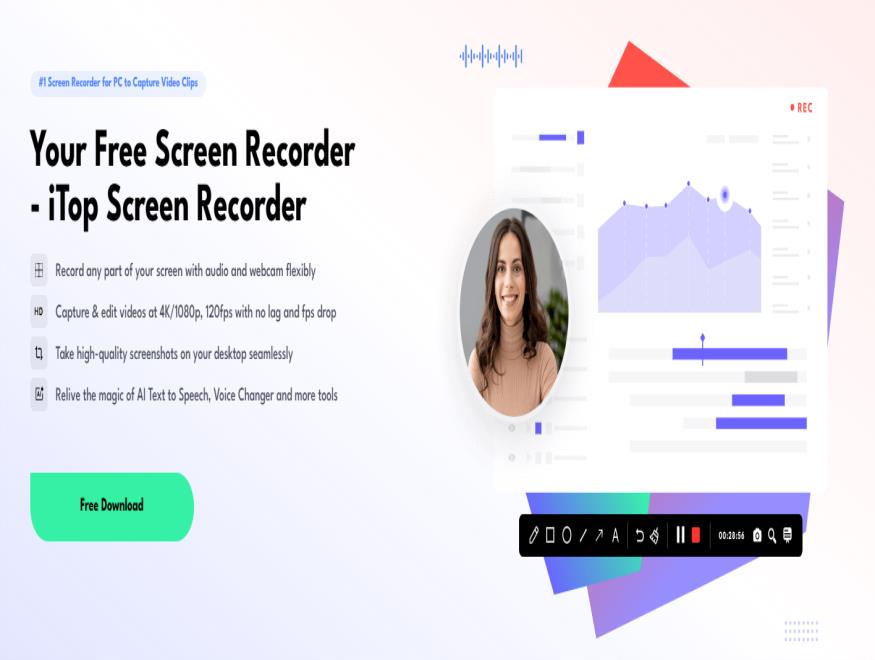
iTop Screen Recorder: Seamless Screen Recorder with Innovative and Useful Features
Recording your PC screen should be both simple and powerful, whether you’re creating step-by-step tutorials, streaming intense gameplay, hosting virtual meetings, or capturing memorable video calls with loved ones. We also record online courses, software demos, or even preserve fleeting social media moments. iTop Screen Recorder is an innovative tool that fulfills the purpose of efficient and convenient screen recording, with a package of premium features, including HD quality, flexible capture options, high-quality recording, and an easy-to-use interface packed with AI-powered features.
What is iTop Screen Recorder?
iTop Screen Recorder is a fantastic app that offers innovative features for recording your screen, allowing you to have more control and experience a more convenient and flexible screen recording experience. Let’s explore how iTop screen recorder works and how it can enhance your productivity.
Prominent Features of iTop Screen Recorder:
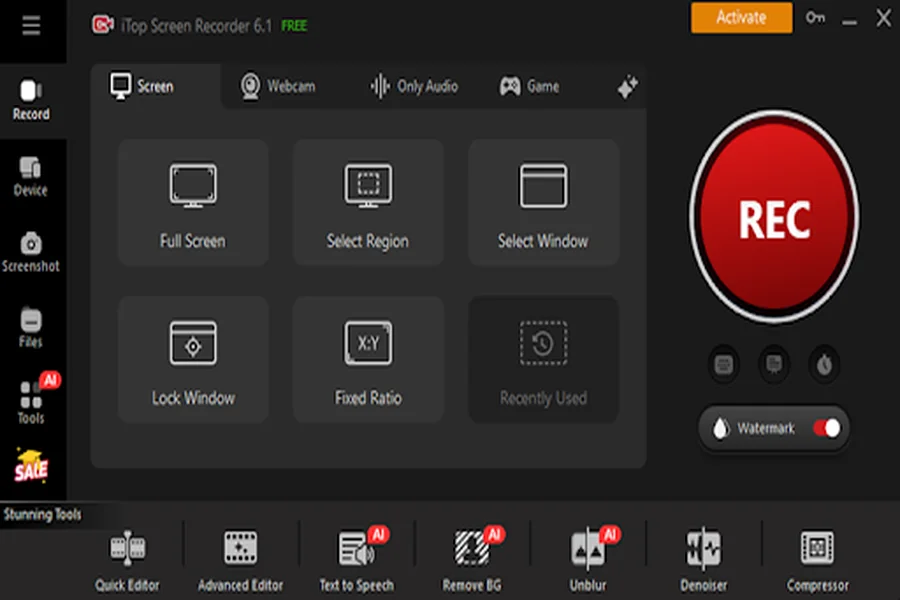
Free Flexible Recording Options:
- Whether you prefer to record in full screen or want to capture a custom region on your screen, you can do so easily.
- Supported formats include WMV, MP4, MOV, and more.
- Added system audio options for the main application on the device.
- Available on Windows.
- Video settings now include mute options for the device within the main application.
- Clear and unrestricted—there are no time limits and no lag.
High-Quality 4K / 1080p Capture at 120fps:
Record and stream clear, vibrant content, even with limited bandwidth, using 4K 60 fps pass-through. Use the Instant Gameview feature for real-time interactivity when streaming high-action content like gameplay.
Webcam Overlay:
Customize your webcam feed—resize, reposition, blur, swap the background behind you—and easily read voiceover scripts with a scrollable teleprompter and various background options.
Dual Audio Capture & Control:
Easily compare your system sound and microphone, record audio from both separately, and then sync them perfectly to your video frame.
AI Voice Changer & Noise Reduction:
Improve your music with voice transformation or perfect your audio for clarity.
Real-Time Annotation & Built-In Editor:
Draw shapes, arrows, and text to draw users’ attention. Then, without changing apps, you can edit —cut, split, and parallax your scenes, add audio & filters, and adjust panning, zooming, and speed.
Flexible Export & Extras:
Reduce file size with customizable quality, noise reduction, and export in multiple formats—MP4, AVI, MKV, WEBM, and GIF for videos; MP3, AAC, and FLAC for audio; PNG and JPG for screenshots. The free version includes a watermark and limits recordings to about five minutes. Beyond this, the Pro version and the software are available for full use. But what are some of the finer details about this software that we would like to know for ourselves? Keep reading to find out.
How to Use iTop Screen Recorder?
You can use iTop Screen Recorder by following these simple steps:
Step 1: Download & Install
Download iTop Screen Recorder from the official website.
Launch the app once the installation is complete.
Step 2: Select mode
With iTop Screen Recorder, you can select a video mode in which you want to record, such as
– Screen: Capture the whole screen
– Game: Record the game
– Webcam: Capture the video from your attached webcam
– Audio only: Record just audio, either your voice or the system’s voice.
Step 3: Select the recording area
First, choose the recording area. You can record an entire window with Peace Monitor or capture specific moments in your video—whatever works best for you.
Step 4: Start Recording
Switch system audio, microphone, and (optional) webcam overlay options.
Start recording using the REC button or a hotkey; you can also annotate on the fly if you like.
Go ahead and record the video; you can find the file in your video library later.
Trim, combine clips, add text and effects, compress, or export to any format you can think of with the built-in editor.
Who Should Use iTop Screen Recorder?
iTop screen recorder is a perfect app for:
Teaching & Online Tutors: Record classes with crisp visuals, illustrations, and clear audio.
Gamers & Streamers: Capture gameplay in beautiful 4K/120 fps and easily add your webcam, annotations, voice-over, and more in 48000 Hz with 4K passthrough.
Professionals & Students: Save meetings, webinars, training, online teaching, seminars, and presentations with dual audio and clean screenshots.
Creators & Reviewers: Edit and publish multi-format recordings with unprecedented ease.
Conclusion
iTop Screen Recorder makes Windows screen recording effortless with its intuitive design, crisp video and audio capture, and streamlined interface. Whether you’re creating tutorials, preserving gameplay highlights, or recording virtual meetings, it delivers professional-quality results without the complexity. Ready to capture your screen with clarity and ease? Give iTop Screen Recorder a try—it’s free, user-friendly, and perfect for all your recording needs. Download now and start creating seamlessly!
Leave a Reply
You must be logged in to post a comment.